
Course overview
Follow these detailed steps to navigate your courses in Brightspace:
- Access your courses
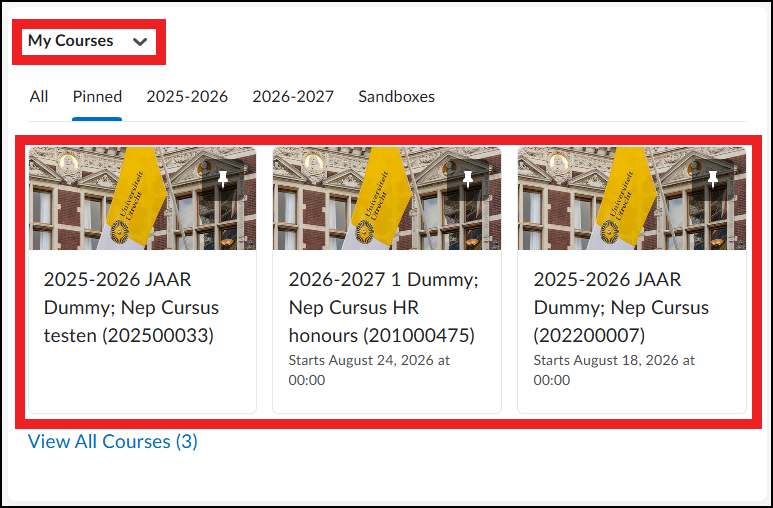
- After logging in, you will see the ‘My Courses’ widget on the homepage. This widget shows all your enrolled courses, usually organized by semester or role. You can browse to find the course you are looking for.
- Courses are displayed as tiles with the course name, code, and instructor. Clicking a tile takes you directly to that specific course.
- Using the Course Selector
- The ‘Course Selector’ in the minibar at the top of the page is another way to access your courses. Clicking this icon shows a list of courses. From here, you can search for a course by name or pin courses to keep them at the top of the list for easy access.
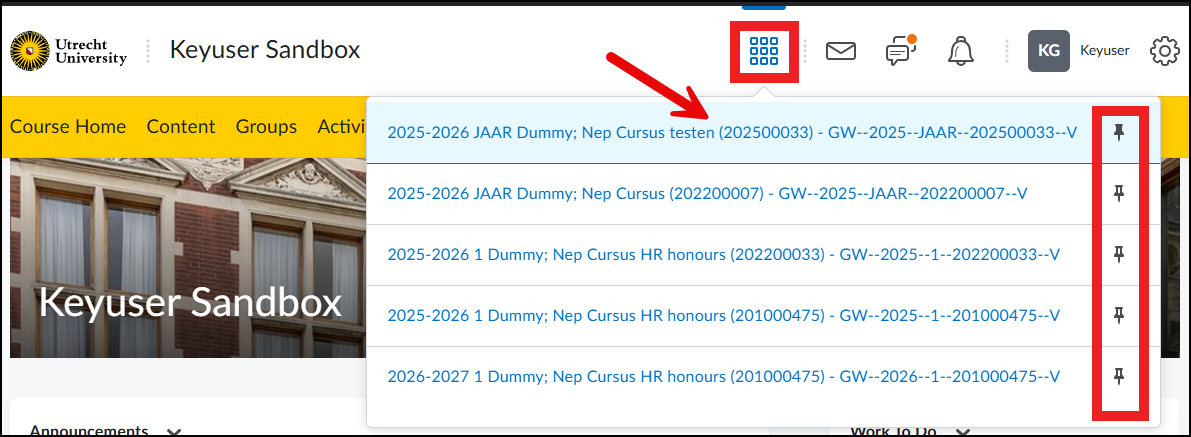
- The ‘Course Selector’ in the minibar at the top of the page is another way to access your courses. Clicking this icon shows a list of courses. From here, you can search for a course by name or pin courses to keep them at the top of the list for easy access.
- Organizing your courses
- You can pin or unpin courses in the ‘Course Selector’ for quick access. To pin a course, click the pin icon next to the course name in the ‘Course Selector’. Pinned courses stay at the top of the list. See image above
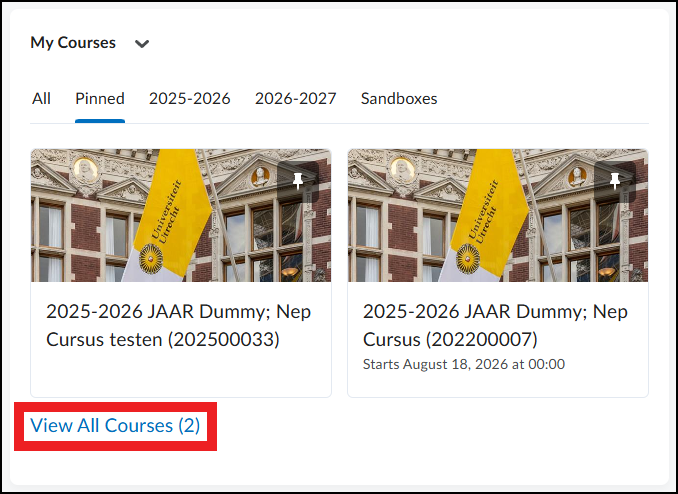
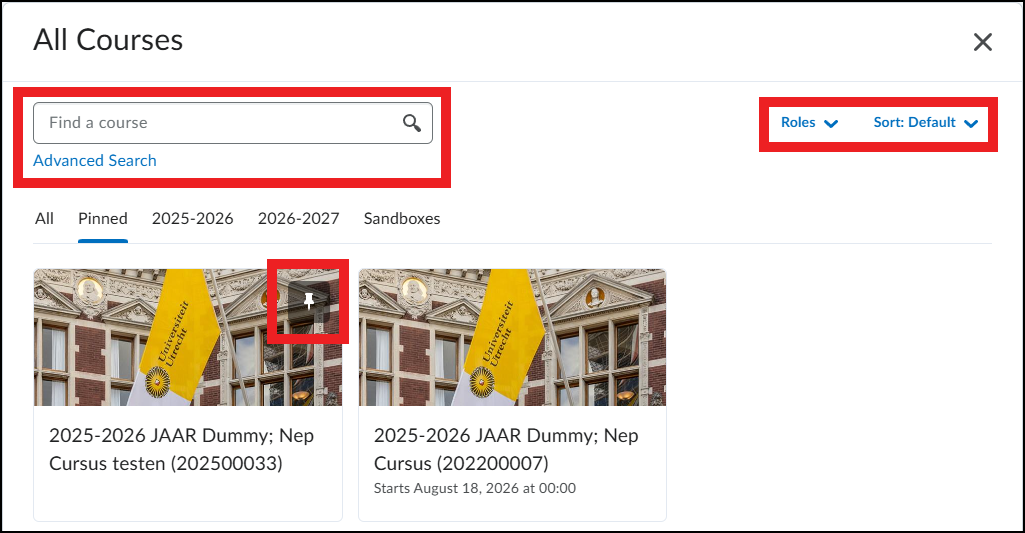
- If you have trouble finding a course, go to ‘View All Courses’ and use the search bar in the course selector. Type the course name or code and the list will be filtered. Here you can also easily find pinned courses.
- Navigating within a course
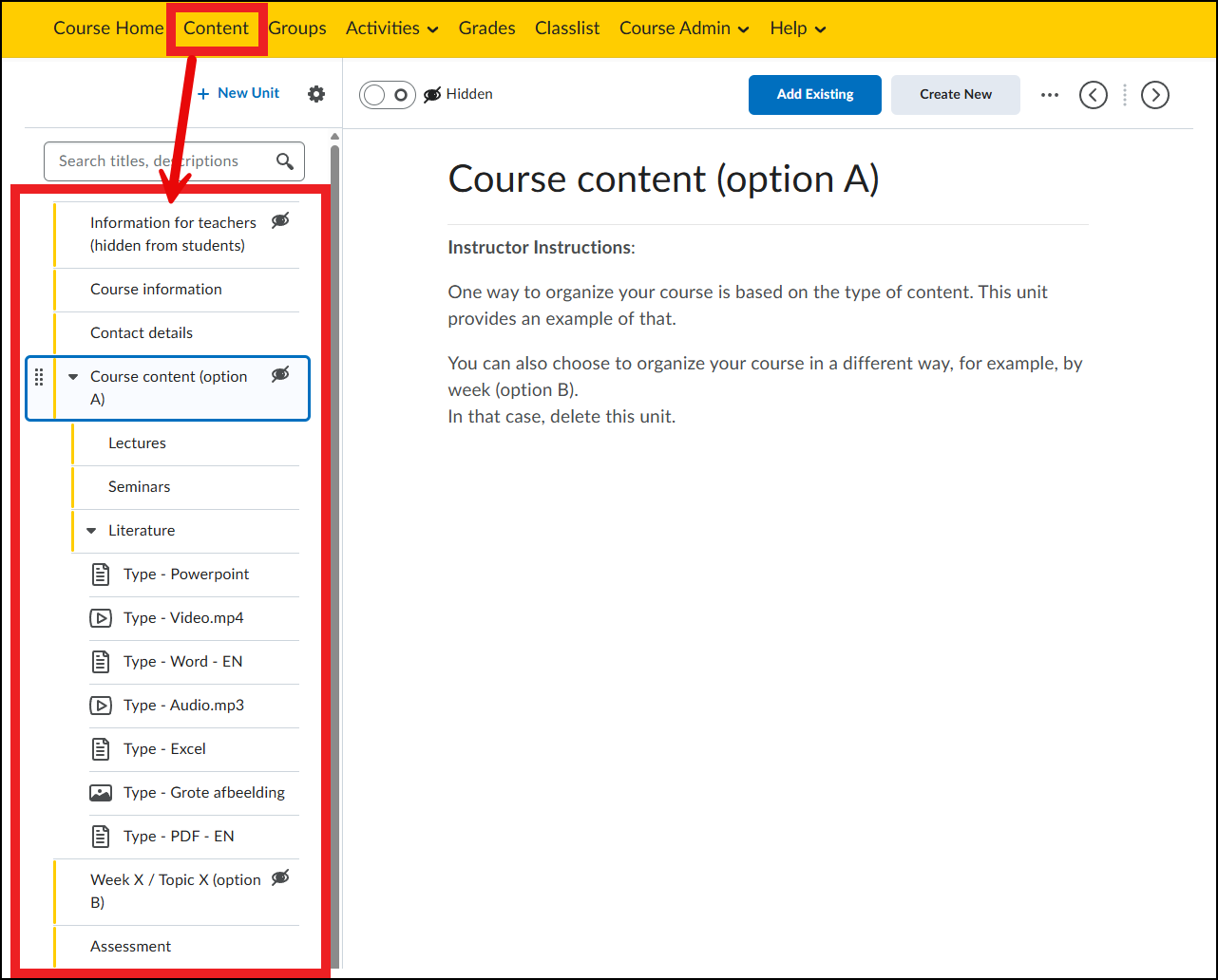
- Once inside a course, you have access to various sections and tools of the course environment via the yellow ‘navigation bar’ at the top, such as ‘Content’, ‘Assignments’, ‘Grades’, and ‘Discussions’.
- In the ‘Content’ section, you will find all course materials organized in modules. You can navigate through these modules by clicking them in the menu on the left.
- Viewing course announcements
- ‘Announcements’ are displayed on the course homepage and contain important updates from your instructor. Make sure to check them regularly to stay informed about changes or important information regarding the course.
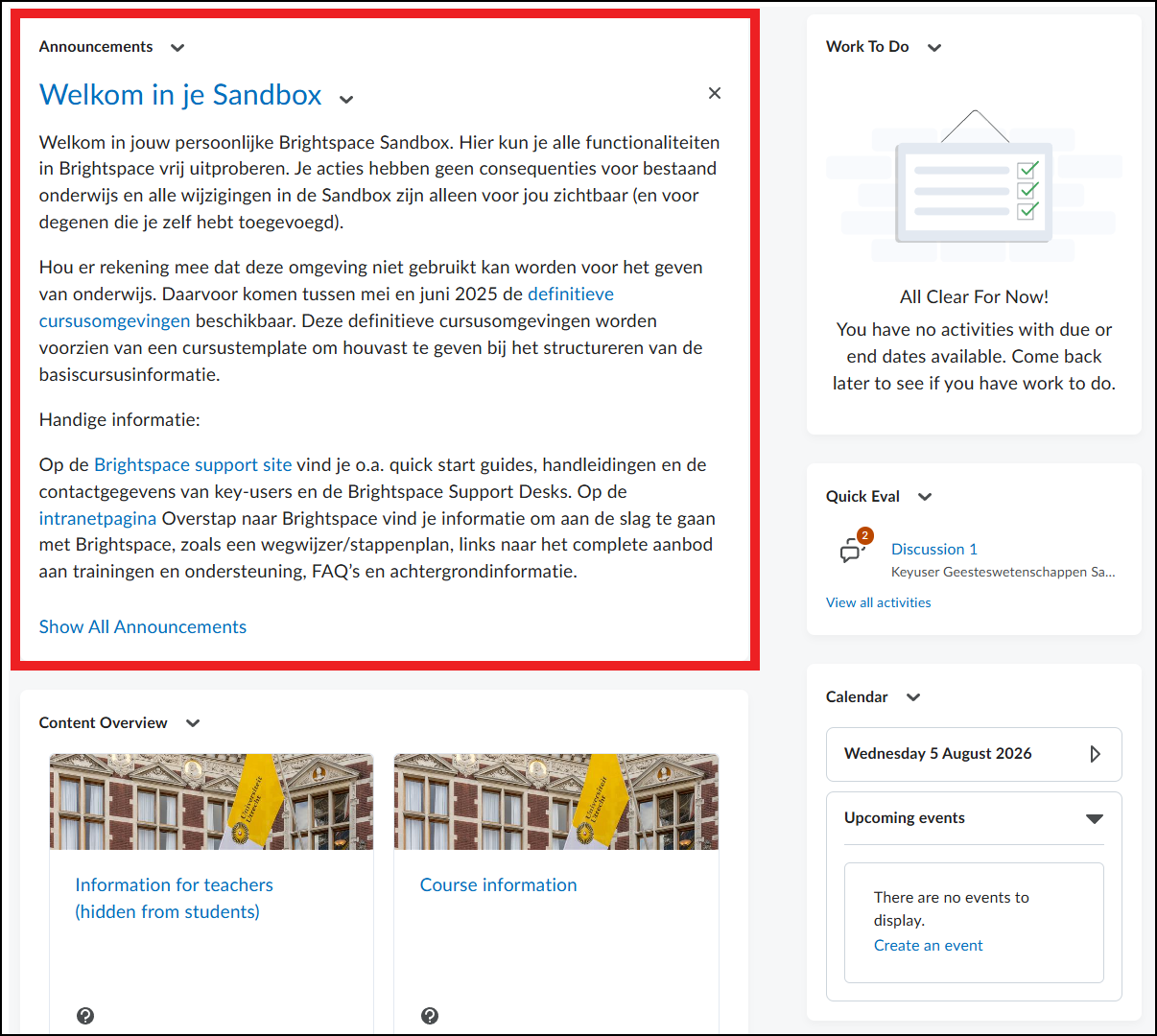
- ‘Announcements’ are displayed on the course homepage and contain important updates from your instructor. Make sure to check them regularly to stay informed about changes or important information regarding the course.
- Viewing course updates
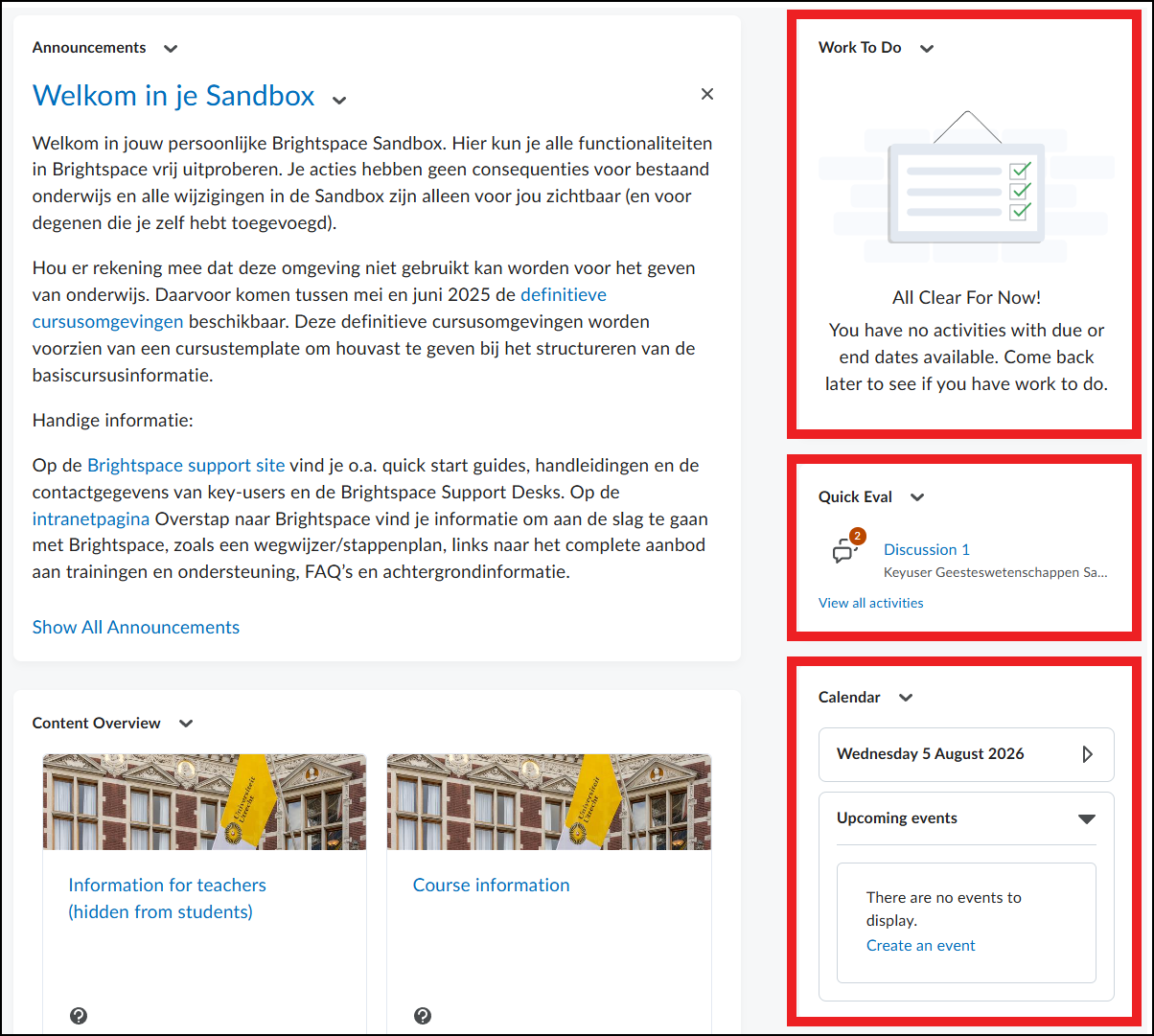
- The ‘Work To Do’ widget on the course homepage informs you about new submissions, unread discussion posts, and other course activities.
- The ‘Quick Eval’ widget shows submitted assignments.
- The ‘Calendar’ shows upcoming deadlines and course activities. You can click specific dates to get detailed information about assignments, exams, or other important events.
- Help and support
- If you need help navigating your courses, look for the ‘Help’ option in the minibar. This provides access to Brightspace support resources, including tutorials and frequently asked questions.
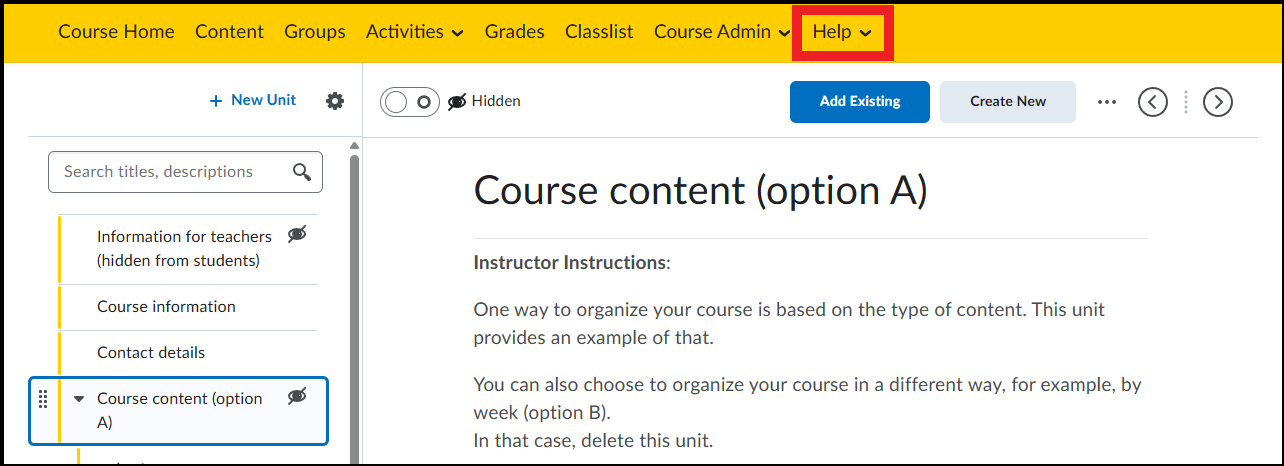
- If you need help navigating your courses, look for the ‘Help’ option in the minibar. This provides access to Brightspace support resources, including tutorials and frequently asked questions.